Launching the NuNet Appliance
After installing the NuNet Appliance, follow these steps to launch it and verify it's running correctly.
Starting the Appliance
- Start the Virtual Machine
- Open VirtualBox and select your NuNet Appliance instance.
- Click the Start button to boot the appliance.
- Wait for the appliance to fully initialize.
For WSL run
wsl -d nunet-appliancefrom a powershell window
This step is not required if you are working with a bare metal installation
-
Verify Boot Success
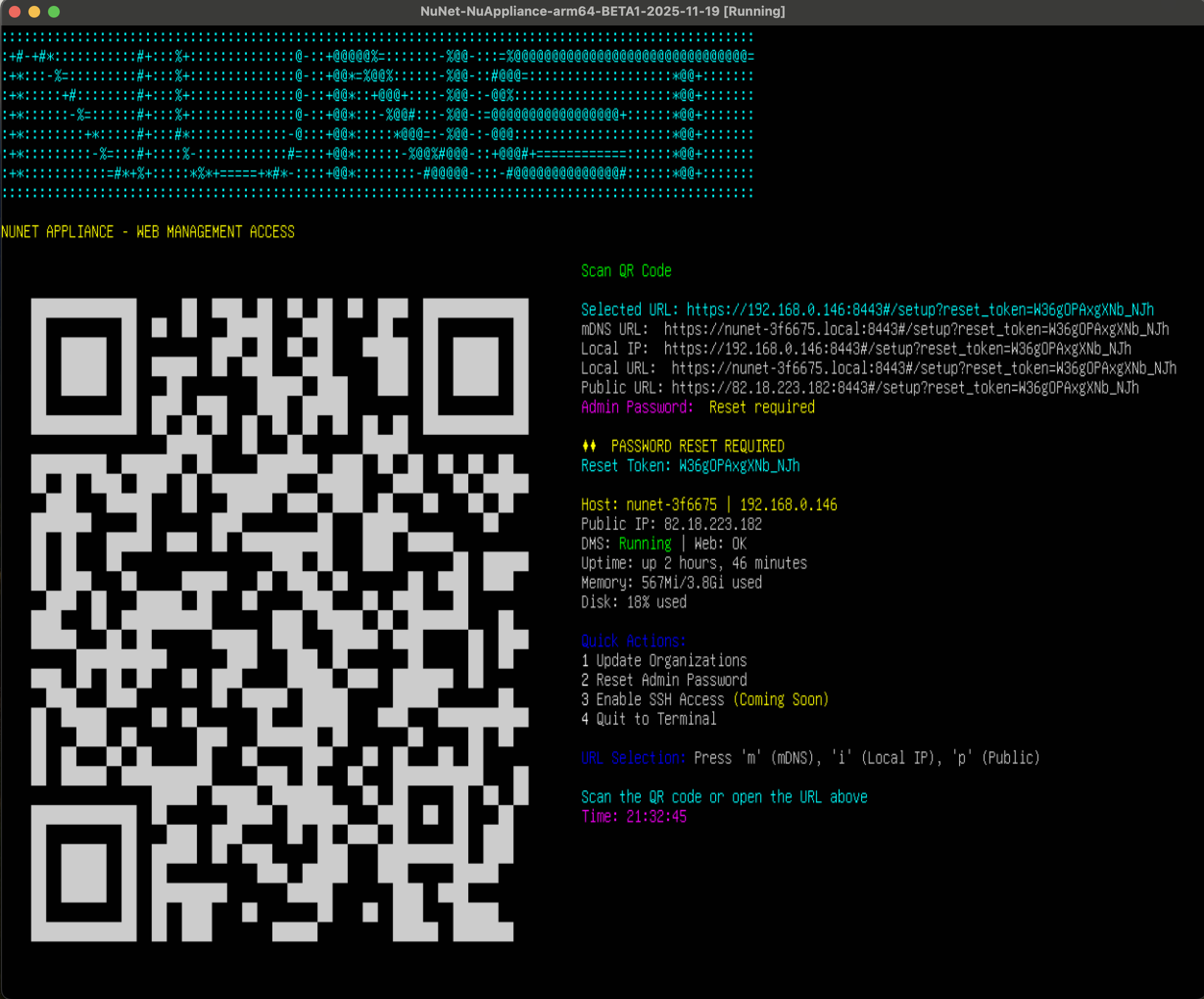
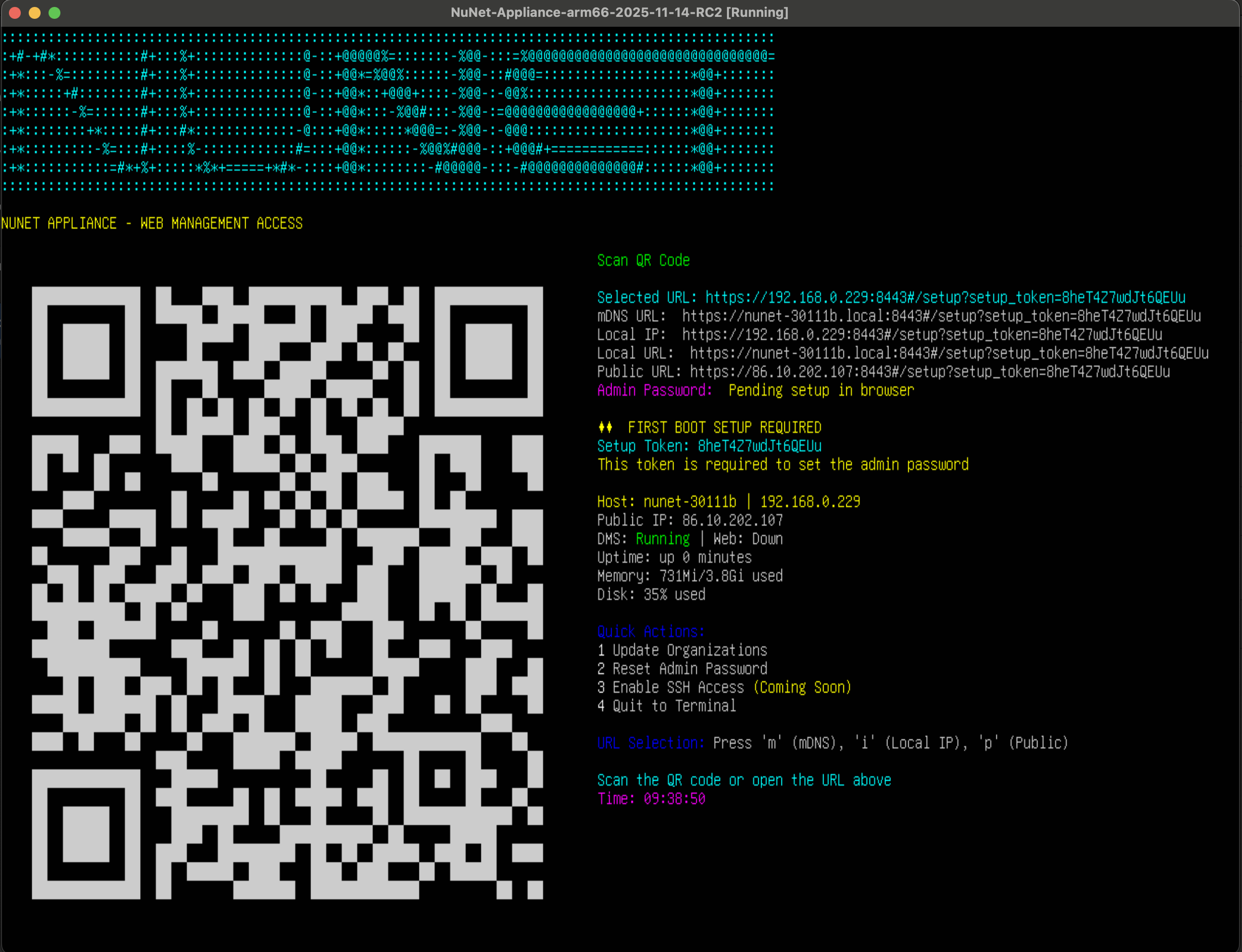
- Once booted, you should see a console display with:
- A QR code for mobile access
- A web URL for browser access (e.g.,
https://192.168.x.x:8080#/setup/setup_token?ACertainToken) - Host details, IP address, DMS status, and resource utilization
- A menu for interacting with the appliance.
- The appliance is ready when you see the QR code and URL displayed.
- Once booted, you should see a console display with:
Note: It is recommended to scan the QR code and complete the initial setup on the mobile phone browser. Alternatively, you to manually type the entire web address in a web browser. VirtualBox does not allow you copy text by default, hence, you avoid errors and save time by scanning the QR code. The web URL for accessing the appliance on the web contains a setup token (as part of the URL) that must be entered on the browser to complete the initial setup. If this setup token is not added, you might encounter a
Setup token required for first boot error.
Security Warning
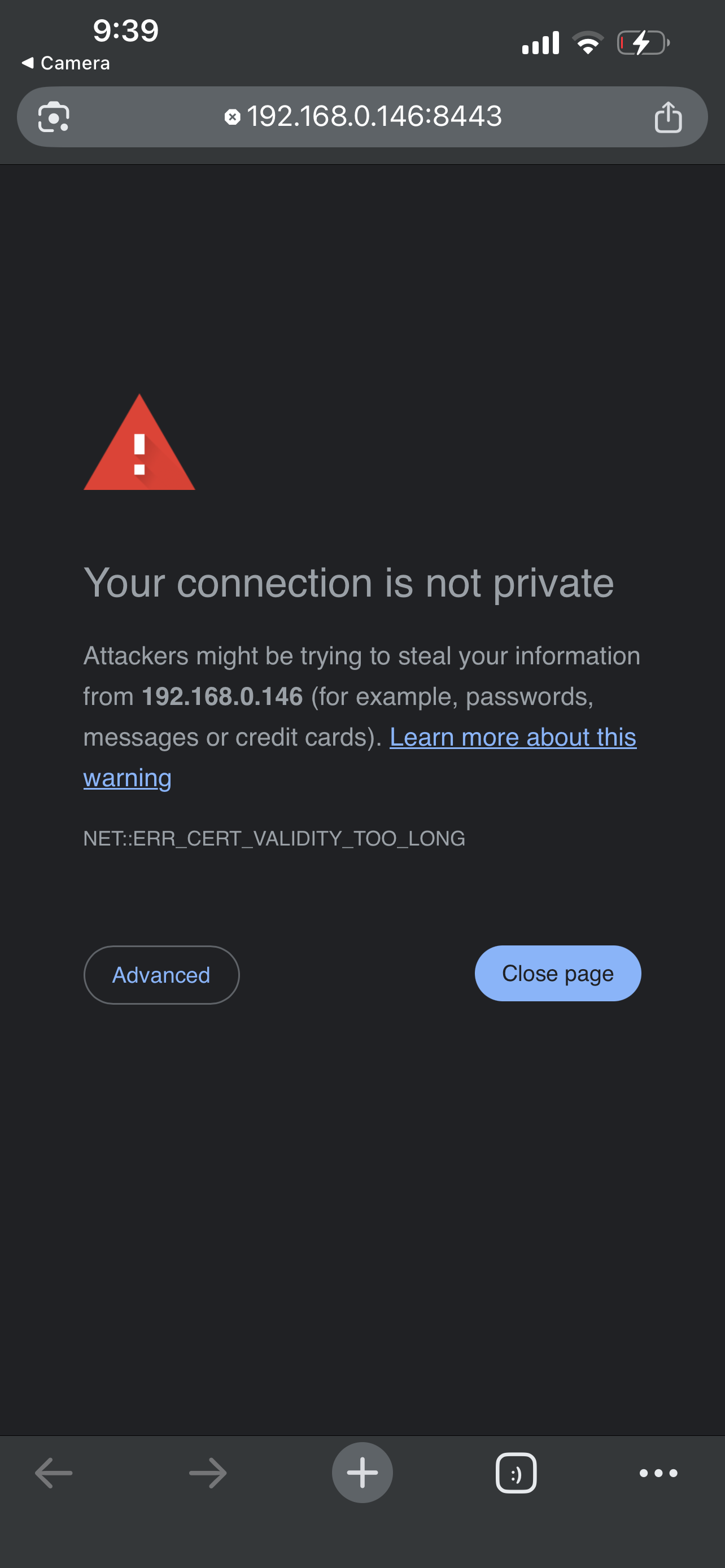
Before you can access the master password setup page, your browser may display a security warning.
"Your Connection is Not Private" Warning
When you scan the QR code or enter the appliance URL, you may see a warning message such as:
- Chrome/Edge: "Your connection is not private" or "NET::ERR_CERT_AUTHORITY_INVALID"
- Firefox: "Warning: Potential Security Risk Ahead" or "SEC_ERROR_UNKNOWN_ISSUER"
- Safari: "This connection is not private" or "This site's security certificate is not trusted"
Why This Happens
This warning appears because the NuNet Appliance uses a self-signed SSL certificate for secure communication out of the box. Because this certificate isn't issued by a global authority, your browser flags it as "untrusted" by default. This behavior is expected and you can safely proceed further.
How to Proceed
You can safely proceed past this warning:
-
Chrome/Edge:
- Click "Advanced" or "Show Details"
- Click "Proceed to [IP address] (unsafe)" or "Continue to site"
-
Firefox:
- Click "Advanced"
- Click "Accept the Risk and Continue"
-
Safari:
- Click "Show Details"
- Click "visit this website" or "Continue"
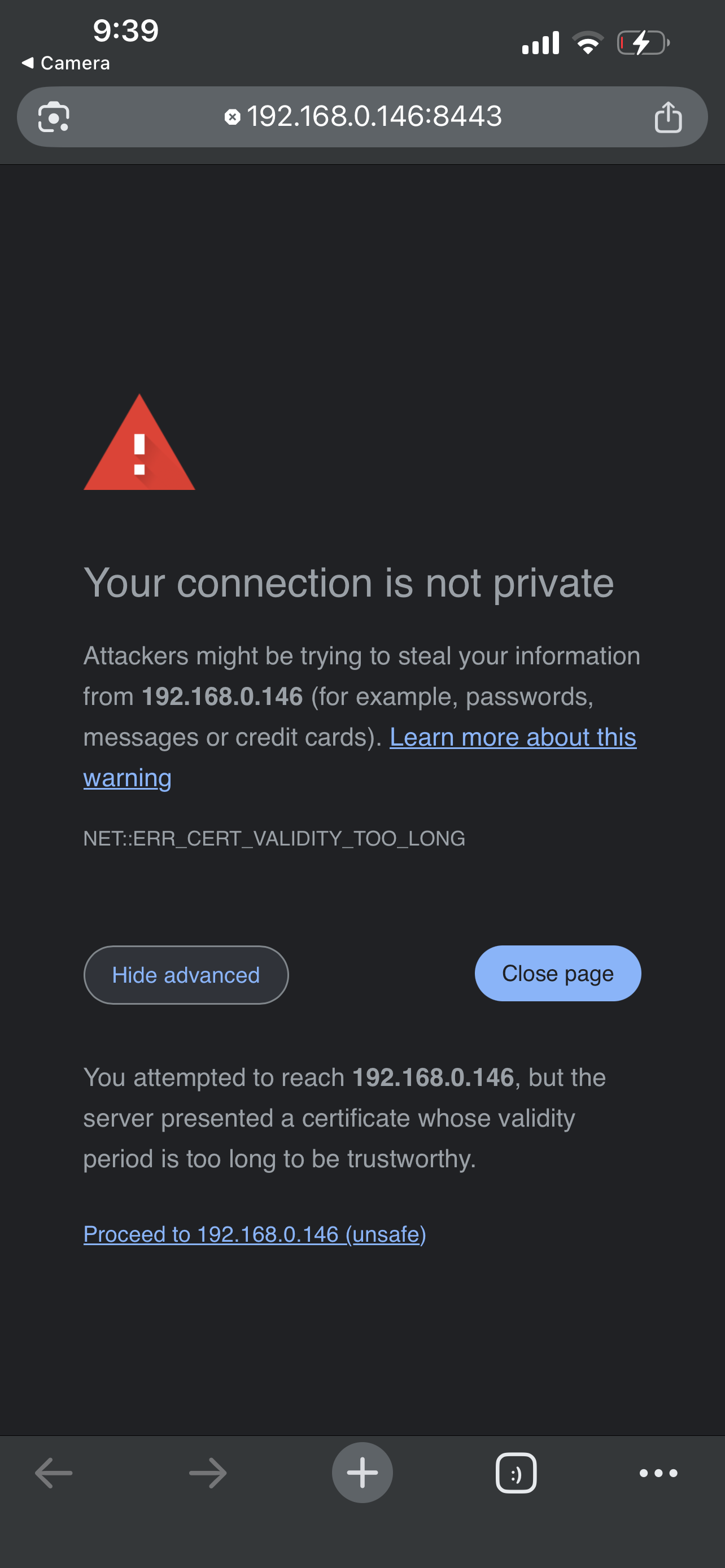
Important: This warning only appears because the certificate isn't issued by a public Certificate Authority. The connection is encrypted and secure out of the box.
Setting Up Your Master Password
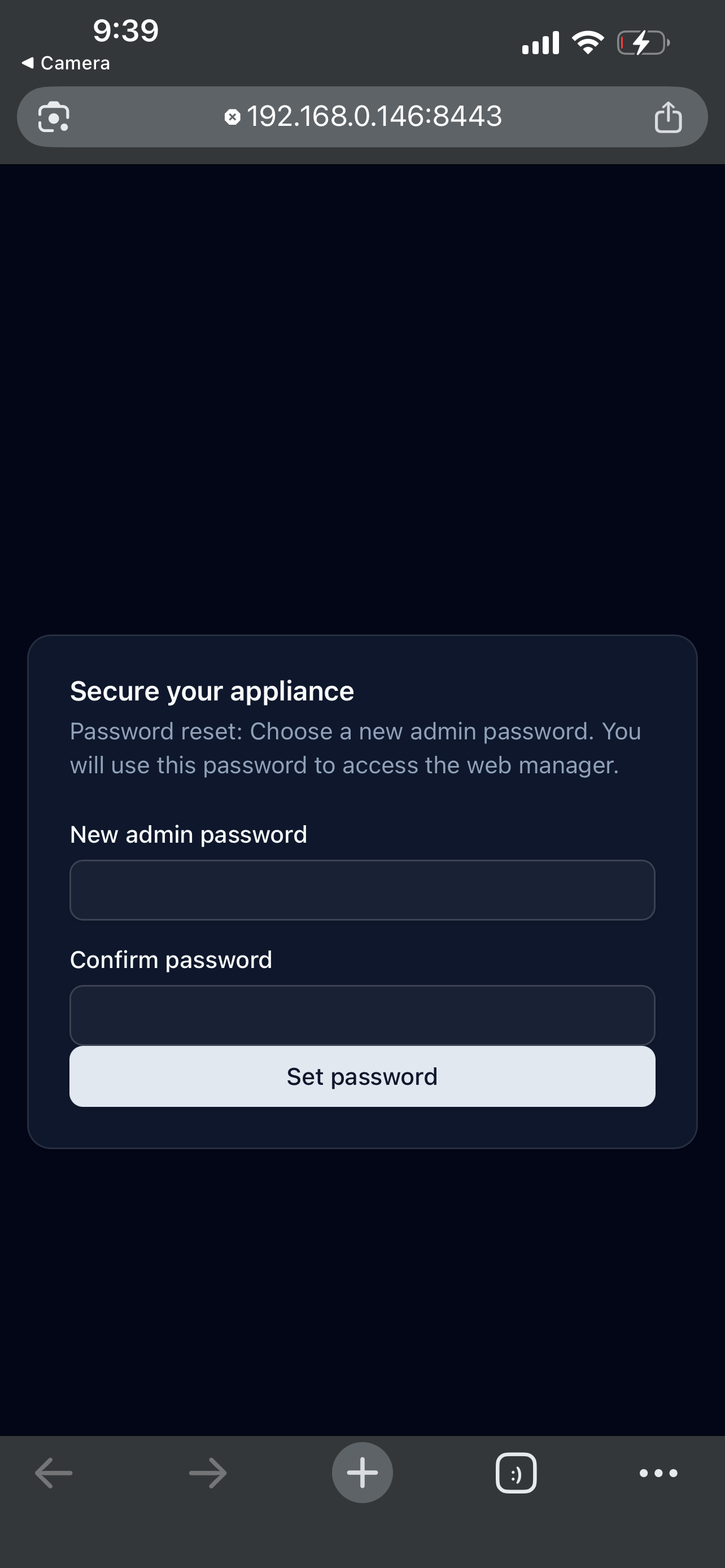
After proceeding past the security warning, you'll be taken to the master password setup page.
-
Create Your Master Password
- Enter a strong, memorable password
- Confirm the password
- Store this password securely—you'll need it for all future logins
-
First Login
- After setting your master password, you'll be automatically logged in
- You'll see the dashboard landing page with options to get started
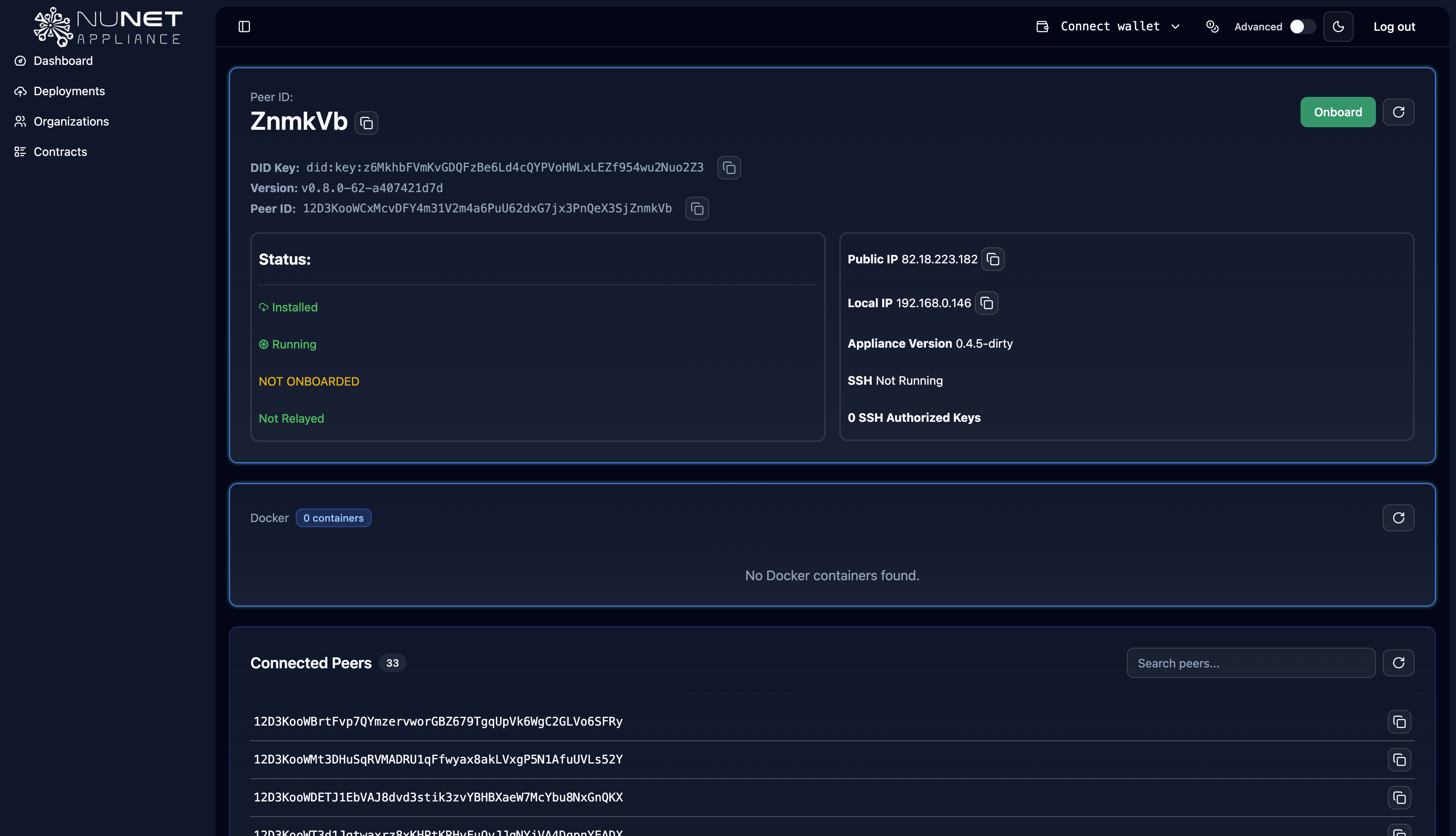
Next: Learn about all the information displayed on the dashboard in the Dashboard Walkthrough.
After setting your password, the interface presents Simple and Advanced modes: The Simple mode walks you through onboarding and quick deployments, while the advanced mode exposes additional controls for tailoring ensembles
You can switch between modes using the toggle in the top navigation bar.

Logging In
For subsequent logins:
- Access the appliance URL or scan the QR code
- Enter your master password on the login screen
- You'll be taken to the dashboard
Resetting Your Master Password
If you lose or forget your master password, you can reset it from the appliance terminal. For detailed instructions and troubleshooting, see Resetting Your Master Password.
Quick steps:
- Access the appliance terminal in VirtualBox
- Select option
2from the terminal menu and press Enter - The QR code and web URL will refresh
- Create a new master password when prompted