Installing The NuNet Appliance
Appliance Types
It is important to understand that the NuNet Appliance can be installed in a few different ways, different options will work better for different scenarios. This will be discussed in greater detail later but this is the overview.
Virtual machine images (VM)
We have several Virtual machine images that can be used for both Virtualbox (that will work across all platforms - Windows, Mac, Linux) or WSL "Windows Subsystem for Linux" that will run on a modern Windows machine running an up to date version of Windows 10/11.
Cloud Init Script
The cloud init script can be used to deploy an appliance onto any cloud instance.
ISO Image
The ISO image can be used to do a "bare metal" deployment directly onto physical hardware.
Raspberry Pi Image
There is an image specifically for the raspi that you can copy directly to an SD card and boot your Raspi.
Which option should I choose?
Initally we recommend using one of the virtual machine images to do your initial testing as its very easy to set up and can run on top of an exisiting system without having to make changes to your operating system (other than installing/configuring the relevent virtualization software)
GPU Resources
If you want the Appliance to use GPU resources in your machine then you will need to
- use Virtualbox image on MacOS (If you are using APPLE silicon e.g. any of the M series processors) or
- use the WSL appliance on Windows or
- do a bare metal install on dedicated hardware (this is the most reliable option and will give you the best performance).
Note Virtualbox does not support sharing the GPU with the Windows OS or earlier apple macs (Intel CPU) with descreete GPU's at this time.
Virtual Machine images are also useful to act as your Entry point to the network if you want to run workloads and use resources of other peers in NuNet network (like other peoples GPU's).
When you are ready to run a NuNet node to provide compute resource to the network we recommend using the ISO image to install the appliance on a dedicated machine.
System Requirements
System requirements vary depending on your intended role in the NuNet network. See the Capabilities section for detailed explanations of each role.
If you just want to test out the appliance then you will need at least: 2 CPU cores and 4 GB of ram to be able to access the network and run some simple demos.
After that look at Hardware Specs for minimum and recommended specifications based on the role you want your appliance to play on the network.
Installation Instructions
Installation Steps using VirtualBox
Follow these steps to install and run the NuNet Appliance using VirtualBox:
-
Download and install VirtualBox
-
Download the correct Appliance Image
-
Import into VirtualBox
- Open VirtualBox software.
- Select
File → Import Appliance, then select the appliance image you just downloaded or you can Double-click the downloaded.ovafile from the file manager. - Adjust resources based on your role:
- Compute Provider: 4+ CPUs, 8GB+ RAM, 100GB+ disk
- Compute Consumer: 2+ CPUs, 4GB+ RAM, 20GB+ disk
- Configure Network Settings
- In VirtualBox, select your NuNet Appliance instance and click Settings.
- Navigate to Network settings.
- Change the Attached to dropdown from
NATtoBridged Adapter. - Select your network adapter from the Name dropdown.
- Click OK to save the settings.
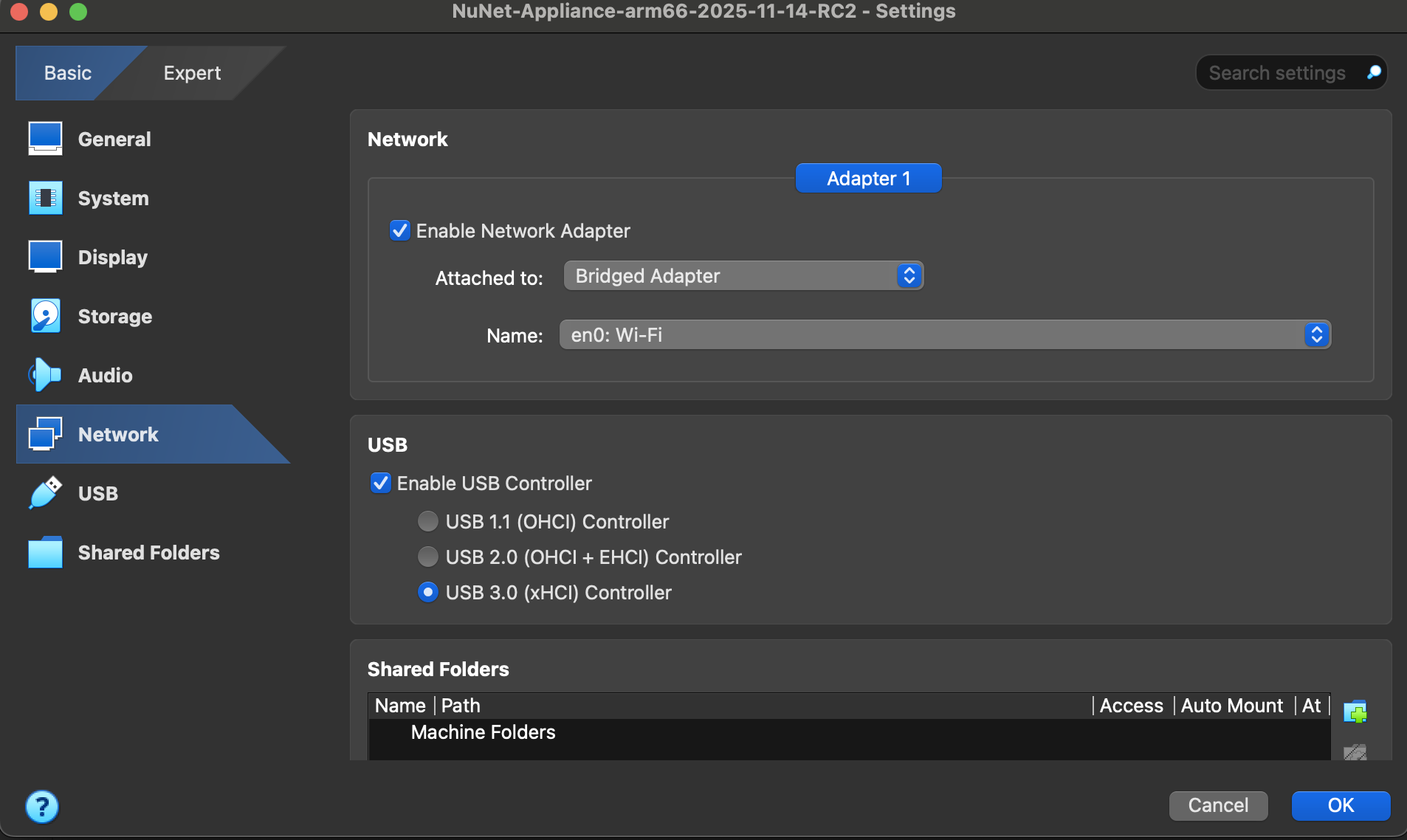
Note: Bridged adapter mode allows the appliance to receive its own IP address on your local network, which is required for proper network connectivity.
-
Start the Appliance
- The NuNet appliance launches automatically on boot.
- Wait for initialization and verify you see a QR code at the end of the boot process.
⚠️ Security Reminder:
Only download official appliance images from NuNet sources.
Installation Steps for WSL
The following steps describe how to install and run the NuNet Appliance using the Windows Subsystem for Linux (WSL).
-
Download the NuNet WSL distribution package and the installer script AMD64 NVIDIA GPU
-
Extract the ZIP file. It will contain two files.
-
Move both files to the same directory. Then open a PowerShell window as Administrator and navigate to that directory. In this example, we use
C:\nunet -
Run the following command in the elevated PowerShell window to execute the installer script with administrative privileges:
powershell -ExecutionPolicy Bypass -File "C:\nunet\deploy-nunet-appliance-wsl.ps1" -ImagePath "C:\nunet\nunet-appliance-wsl.tar" -DistroName "nunet-appliance" -
The installation process may take a few minutes, depending on your system's performance.
The installer will import the NuNet Appliance as a new WSL distribution (without affecting any exisiting WSL distributions). It will also configure networking to allow the appliance to share the Windows host's IP address. Additionally, it will create firewall rules to enable access to the web interface from the local machine and other devices on the same network (for example, to manage it from a mobile phone).
-
Once the installation is complete, you can start the appliance using:
wsl -d nunet-appliance
For a visual walkthrough of installing the WSL distribution and joining an organization, refer to this tutorial.
Installation Steps for Bare Metal Setup
Overview of the steps
-
Download the Appliance Image
- Bare Metal ISO (Intel & AMD): Download here
⚠️ IMPORTANT DATA LOSS WARNING This image is configured to AUTOBOOT AND ERASE the ENTIRE internal hard disk of the computer it is started on. Ensure you CAREFULLY LABEL any usb key you burn this to.
-
Create a bootable USB stick using the image
Note: You will need admin privileges.
Minimum 8GB space is needed. ⚠️ Note that any existing data on the stick will be erased
We recommend that you use balenaEtcher to do this.
- Use the USB stick to install and boot the Nunet Appliance on your device
⚠️ Do NOT insert this USB into a computer you do not intend to erase all data on the target machine will be wiped without prompting.
⚠️ Security Reminder:
Only download official appliance images from NuNet sources
Installation Steps for Raspberry Pi Setup
Raspberry Pi 5 is recommended, both 8G and 16G versions work fine.
-
Download the Appliance Image
- Raspberry Pi .img (ARM): Download here
-
Unpack the gzip achive
-
Burn the image to SD card
Note: You will need admin privileges.
We recommend using 64G SD card, but 32G may also work fine.
Example using Ubuntu Linux:
sudo dd bs=4M if=nunet-appliance-pi-image.img of=/dev/mmcblk0 conv=fdatasync status=progress
Make sure that SD card is not mounted on the system before doing that.
- Install NuNet Appliance from the new SD card
The process is iterative and semi-unatended. A network connection (best if wired!) is required during both boots so the device can download the script needed to install the appliance. It's best to have a screen and keyboard connected to the device while performing this process. Steps:
-
Put SD card in Raspberry Pi and power it on; The step will finish with Ubuntu login prompt. Reboot with Ctrl+Alt+Del.
-
The next reboot will kick-off cloud-init script and install the newest stable version of NuNet Appliance (network connection is required). After finishing, the device will automatically reboot and will display the Appliance splash screen with QR code ready for onboarding.
Next Steps
After installation, proceed to Launching the Appliance to start the appliance and verify it's running correctly.
Hardware Specs
Compute Provider Requirements
If you plan to provide compute resources to the network:
| Component | Minimum | Recommended |
|---|---|---|
| CPU | 2 cores | 4+ cores |
| RAM | 8 GB | 16 GB |
| Disk Space | 100 GB | 200 GB+ |
| Internet | Stable broadband | High-speed broadband |
Note: Compute providers need sufficient resources to run workloads allocated by the network. Higher specifications enable more concurrent allocations and better performance.
It is also recommended to enable UPnP on your router to allow for easy port forwarding setup from the Appliance web UI.
Orchestrator or Compute Consumer Requirements
If you plan to use the compute resources from the network:
| Component | Minimum | Recommended |
|---|---|---|
| CPU | 2 cores | 4 cores |
| RAM | 4 GB | 8 GB |
| Disk Space | 20 GB | 40 GB |
| Internet | Stable broadband | High-speed broadband |