Deploy An Ensemble
Ensemble Deployment
The deployment process determines how an ensemble is matched to available compute peers based on defined constraints.
For the example ensemble shown below,
version: "V1"

allocations:
  alloc1:
    executor: docker
    type: task
    resources:
      cpu:
        cores: 1
      gpus: []
      ram:
        size: 1 # in GiB
      disk:
        size: 1 # in GiB
    execution:
      type: docker
      image: hello-world

nodes:
  node1:
    allocations:
      - alloc1
This is what happens when you deploy:
- The NuNet orchestrator reads the ensemble file.
- It matches node1 to a suitable compute provider (local or remote).
- It schedules alloc1 on that node.
- Docker pulls the hello-world image and runs it.
- The container executes and prints a confirmation message, showing successful deployment.
Ensemble Deployment on The NuNet Appliance
There are some ensemble templates on the NuNet appliance and you can deploy them directly from your dashboard or make an ensemble to be deployed.
To deploy an ensemble on the NuNet appliance, select deployments on the left navigation pane on the NuNet appliance, followed by the new button.
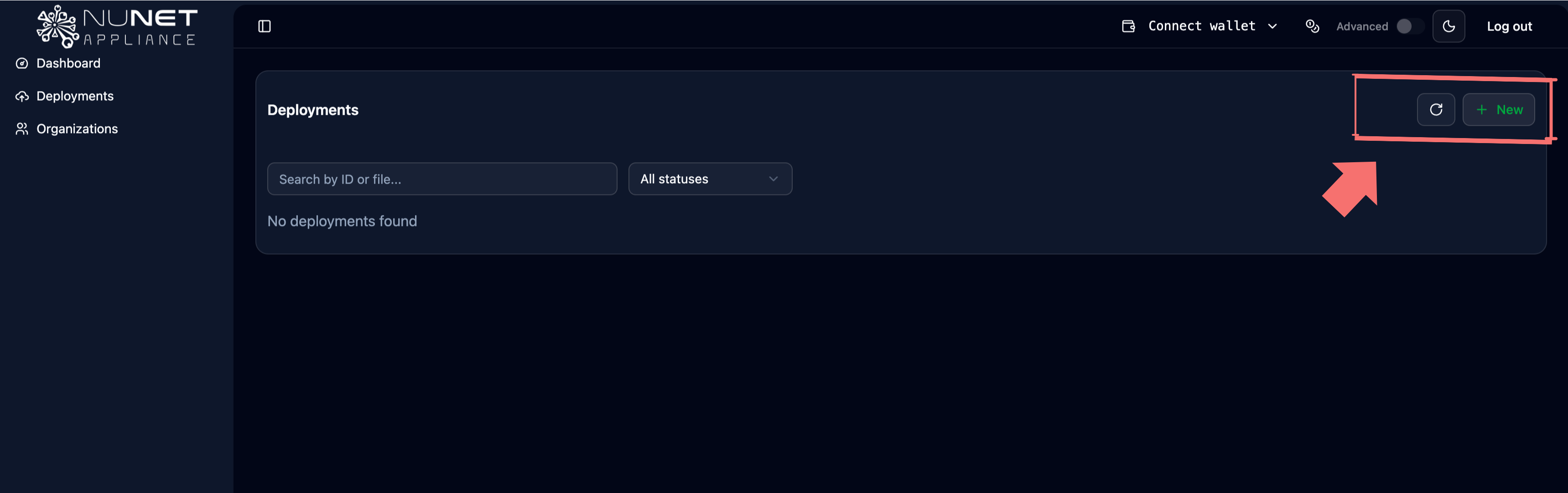
Select an Ensemble to Deploy
Select a pre-made ensemble template to explore how deployments work.
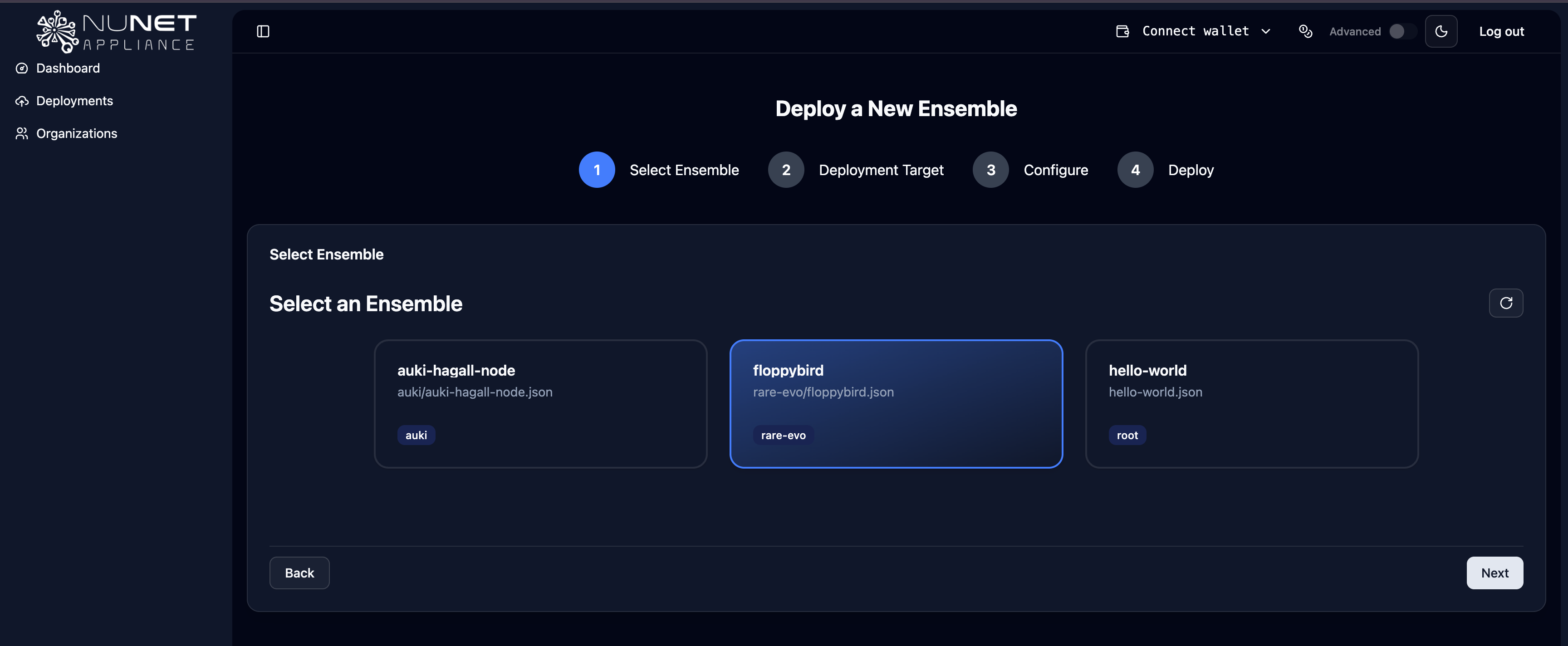
Hit the next button to proceed with the deployment process.
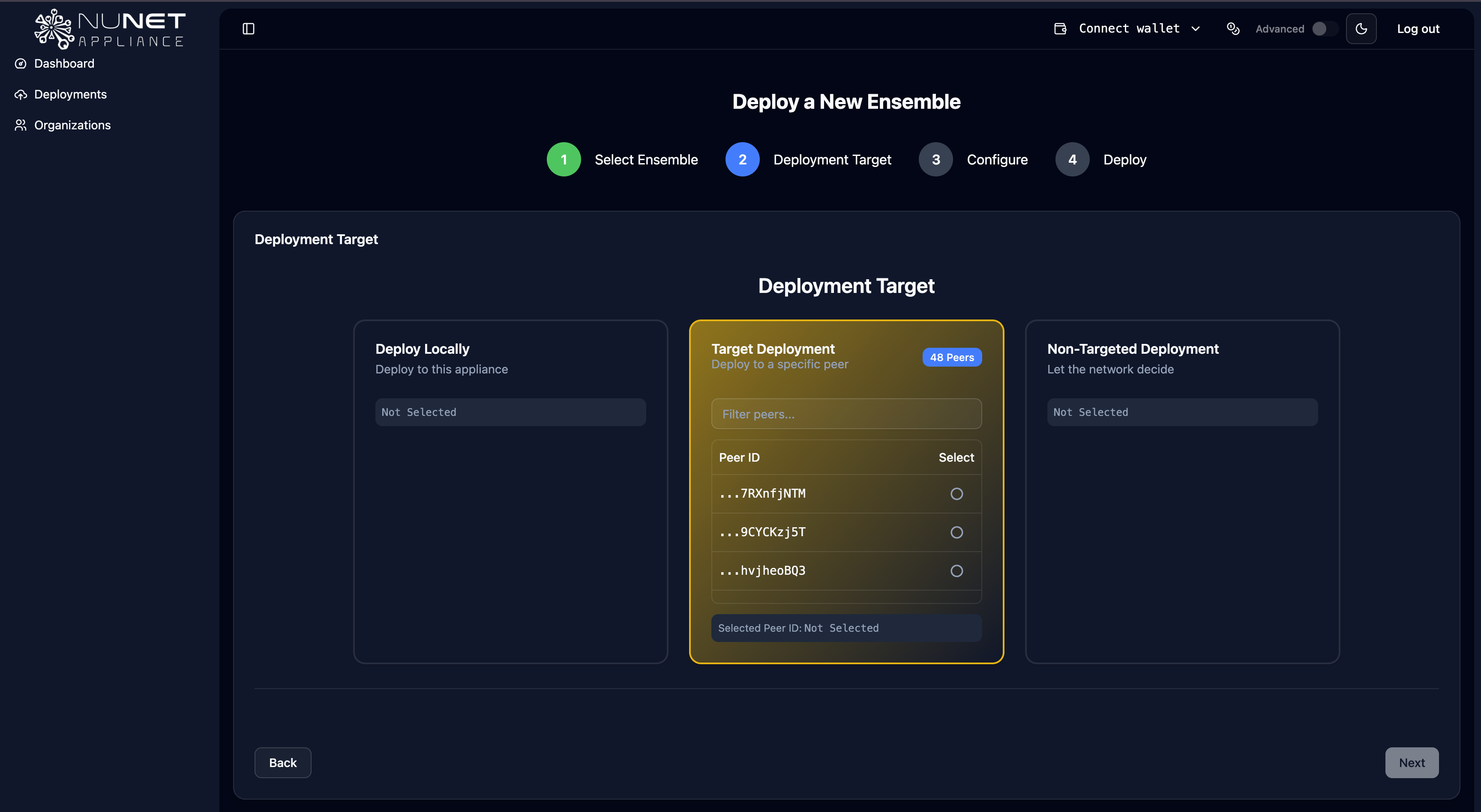
Select Deployment Destination
Deployments can be made locally to your machine, to a targeted peer on the network, or to any machine on the network chosen by the NuNet Device Management Service (DMS).
To make a deployment to your machine (local deployment), you will need to ensure that your machine is onboarded and has got the right amount of resources for the deployment.
For a targeted deployment, you need to select the right peer ID, to the machine you are deploying to. The machine you intend to deploy to, has to be on the network, identifiable by its peer ID. There is an option to search for peers on the network.
An untargeted deployment allows the NuNet DMS choose where to make a deployment. When making an untargeted deployment (non-targeted deployment), you do not need to take any further actions. The network selects machines that suit your selected criteria.
Note: Dynamic DNS (DDNS) / URL functionality requires that you have joined an organization. While deployments may work without joining an organization, DDNS/URL will not be enabled. To use dynamic DNS for your deployments, you must first join an organization. For detailed troubleshooting if DDNS/URL is not working, see DDNS Not Working.
Select an Ensemble with a Specified Peer for Deployment
It is possible to specify a peer in the ensemble .yaml file, as shown in the example below.
version: "V1"

allocations:
  alloc1:
    executor: docker
    type: task
    resources:
      cpu:
        cores: 1
      gpus: []
      ram:
        size: 1 # in GiB
      disk:
        size: 1 # in GiB
    execution:
      type: docker
      image: hello-world

nodes:
  node1:
    allocations:
      - alloc1
    peer: 12D3KooWMt3DHuSqRVMADRU1qFfwyax8akLVxgP5N1AfuUVLs52Y
In the event of a configuration conflict between the specification in the .yaml file and the options selected by the user in the GUI, the GUI selection always takes precedence over any peer value defined in the ensemble .yaml file.
The expected and correct behavior is as follows:
- Local deployments always target the local peer, regardless of whether a peer field is present, absent, or set to another value in the .yaml file.
- Non-targeted deployments ignore any peer specified in the .yaml file. In this mode, the appliance ensures that no peer is enforced, allowing the network to automatically select a suitable node.
- Targeted deployments honor the peer explicitly selected in the user interface. If a peer is defined in the .yaml, it is overridden to match the user’s selection.
This precedence model ensures consistent and predictable deployment behavior and prevents configuration conflicts between the user interface and ensemble definitions.
Configure and Adjust Resources/Parameters
Depending on the ensemble you are deploying, you might need to adjust parameters as needed. Some parameters are necessary, while others may not be. Adjust necessary parameters to suit your needs.
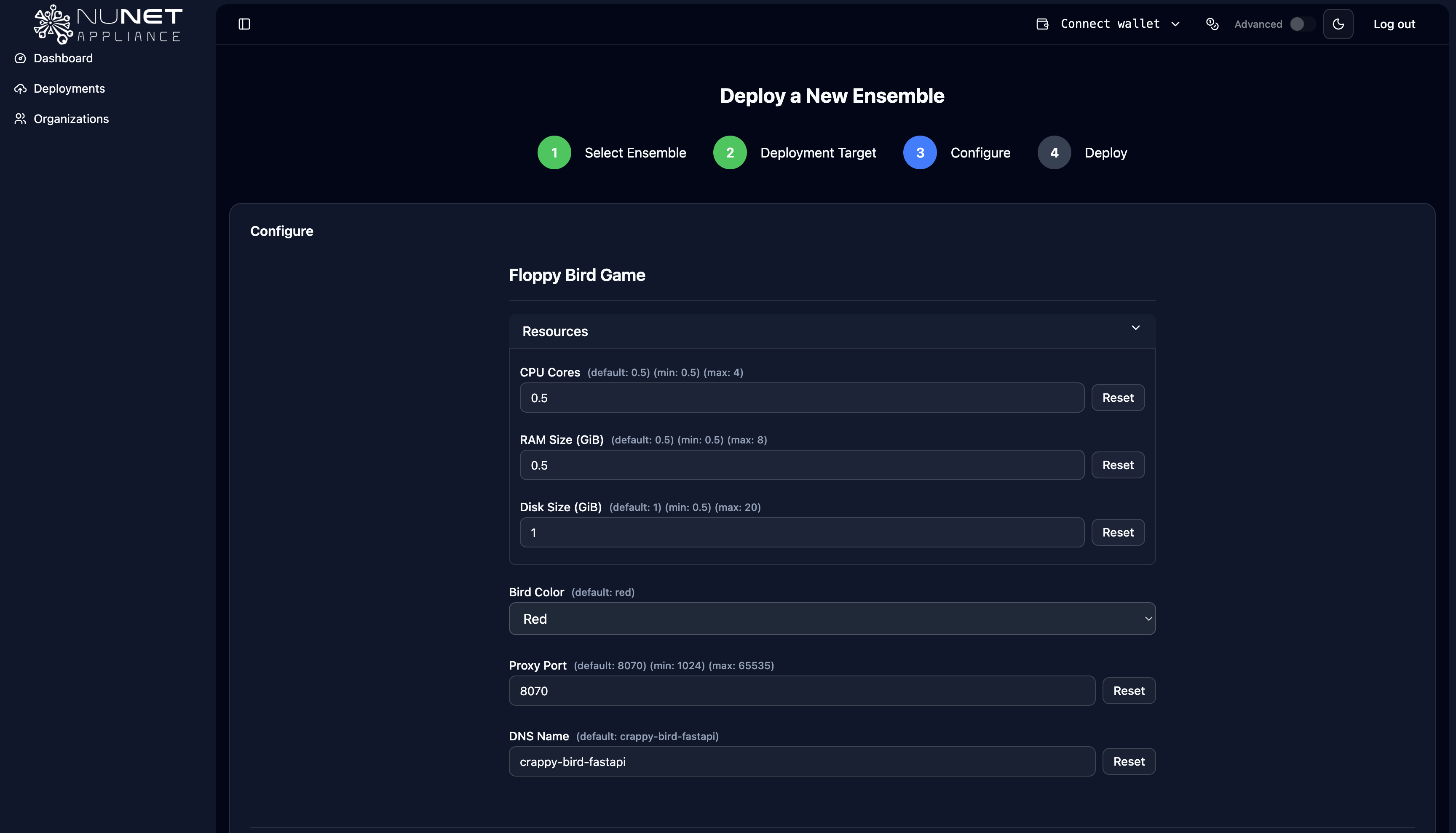
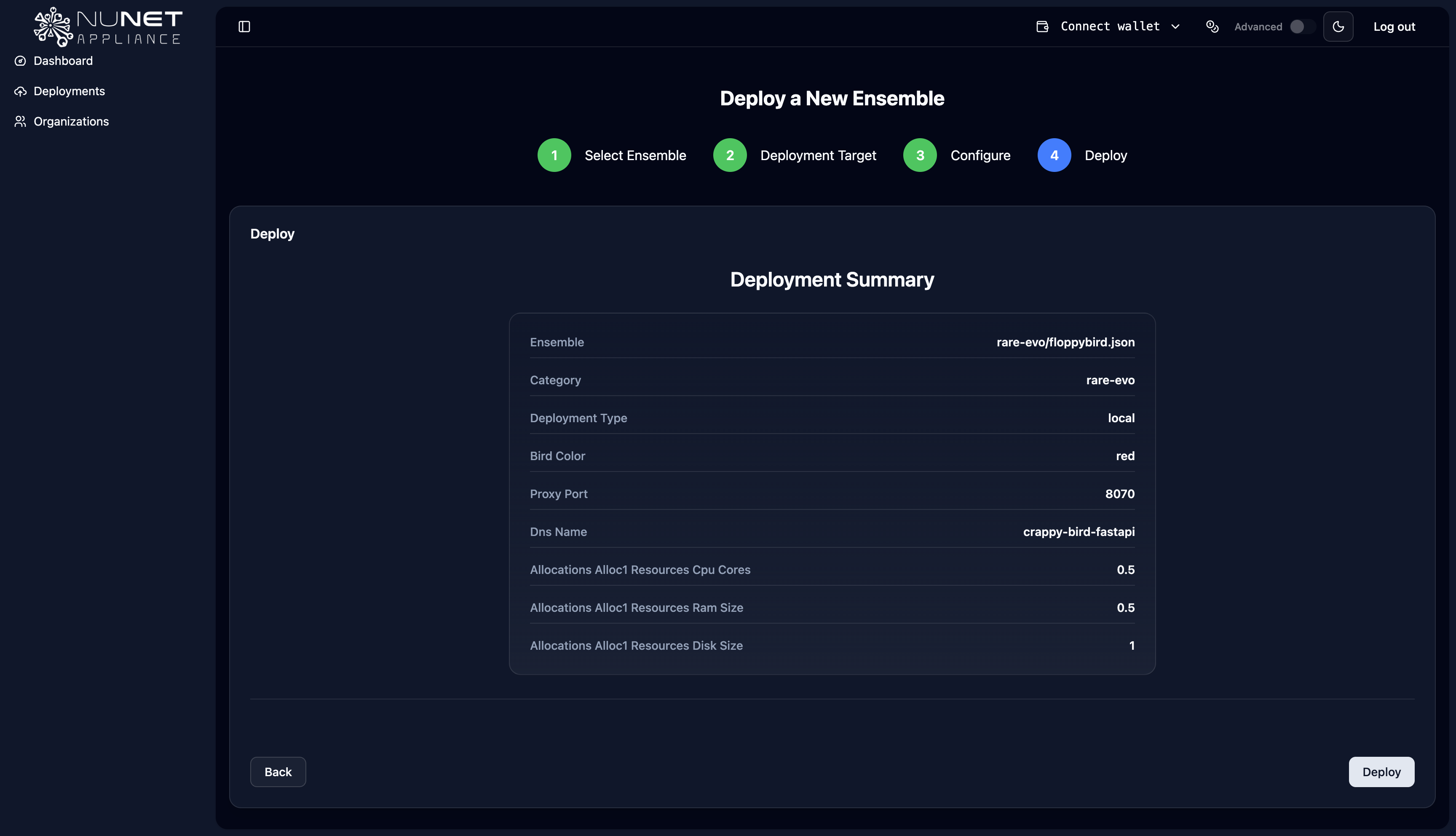
Preview Deployment
Upon adjust parameters and resources require for your deployment, preview the deployment and deploy.
Understanding the Deployment Manifest
After a successful deployment, NuNet generates a deployment manifest that contains comprehensive information about your deployment. The manifest serves as a complete record of the deployment configuration, execution details, and resource allocation.
What is a Deployment Manifest?
The deployment manifest is a structured document that captures all the essential information about a deployment. It provides a detailed snapshot of:
- Deployment Configuration: The ensemble that was deployed, including all allocations and nodes
- Execution Details: Where and how the deployment is running
- Resource Allocation: The actual resources being used by nodes and allocations
- Network Information: Deployment URLs, access endpoints, and network routing details
- Status Information: Current state of the deployment and its components
Key Components of the Deployment Manifest
Machine Information
The manifest identifies the specific machine or compute provider where your deployment is running. This includes:
- Peer ID: The unique identifier of the compute provider machine hosting your deployment
- Node Assignment: Which nodes from your ensemble are running on which machines
- Machine Location: Whether the deployment is local (on your appliance) or remote (on another peer's machine)
- Network Connectivity: Information about how the machine is connected to the NuNet network
This information helps you understand exactly where your workloads are executing and enables you to track deployments across the distributed network.
Deployment URL
The deployment manifest contains the deployment URL, which provides access to your deployed workloads. The URL includes:
- Dynamic DNS (DDNS) Name: If you've configured a DNS name for your deployment, the manifest shows the full URL
- Access Endpoints: Direct URLs to access specific services or containers within your deployment
- Port Information: Network ports through which your deployment is accessible
- HTTPS Configuration: Secure access information for encrypted connections
The deployment URL allows you and other authorized users to interact with your deployed services. If you've joined an organization and enabled DDNS, you'll have a human-readable URL. Otherwise, you may have IP-based access endpoints.
Resource Usage by Nodes
The manifest provides detailed information about the resources allocated to each node in your deployment:
- CPU Allocation: The number of CPU cores assigned to each node and how they're being utilized
- Memory (RAM) Usage: The amount of RAM allocated to each node, including current usage and available capacity
- Disk Space: Storage allocation for each node, showing used and available disk space
- GPU Resources: If applicable, GPU allocation and utilization for nodes that require GPU compute
- Network Bandwidth: Network resource allocation for nodes that need network connectivity
This resource information helps you understand the computational footprint of your deployment and ensures that nodes have adequate resources to run their assigned allocations.
Resource Usage by Allocations
For each allocation within your deployment, the manifest tracks:
- Allocation Status: Whether each allocation is running, stopped, or in an error state
- Resource Consumption: Actual CPU, memory, and disk usage for each allocation
- Container Information: Docker container IDs, images, and execution details for each allocation
- Execution Logs: Links or references to logs for monitoring allocation performance
- Resource Limits: The resource limits (CPU, RAM, disk) that were requested and allocated for each allocation
This granular resource tracking allows you to monitor individual workloads within your deployment, identify resource bottlenecks, and optimize allocation configurations.
Accessing the Deployment Manifest
You can view the deployment manifest through the NuNet Appliance dashboard:
- Navigate to Deployments: Go to the Deployments section in your dashboard
- Select Your Deployment: Click on the deployment you want to inspect
- View Manifest Details: The deployment details page displays all manifest information, including:
- Deployment configuration summary
- Machine and node assignments
- Deployment URLs and access endpoints
- Resource usage breakdown by nodes and allocations
- Status and health information
Using the Deployment Manifest
The deployment manifest is useful for:
- Monitoring: Track resource usage and deployment health in real-time
- Debugging: Identify issues with specific nodes or allocations
- Optimization: Understand resource consumption patterns to optimize future deployments
- Documentation: Keep a record of deployment configurations and their execution details
- Troubleshooting: Access detailed information when diagnosing deployment problems
The manifest provides transparency into how your ensemble is being executed across the NuNet network, giving you full visibility into your distributed compute workloads.