Resetting Your Master Password
If you lose or forget your master password for the NuNet Appliance, you can reset it directly from the appliance terminal interface.
When to Reset Your Password
You may need to reset your password if:
- You've forgotten your master password
- You're unable to log in to the appliance dashboard
- You need to regain access to your appliance
How to Reset Your Password
Step 1: Access the Appliance Terminal
-
Open VirtualBox
- Make sure your NuNet Appliance virtual machine is running
- Ensure the appliance console window is visible
-
Locate the Terminal Interface
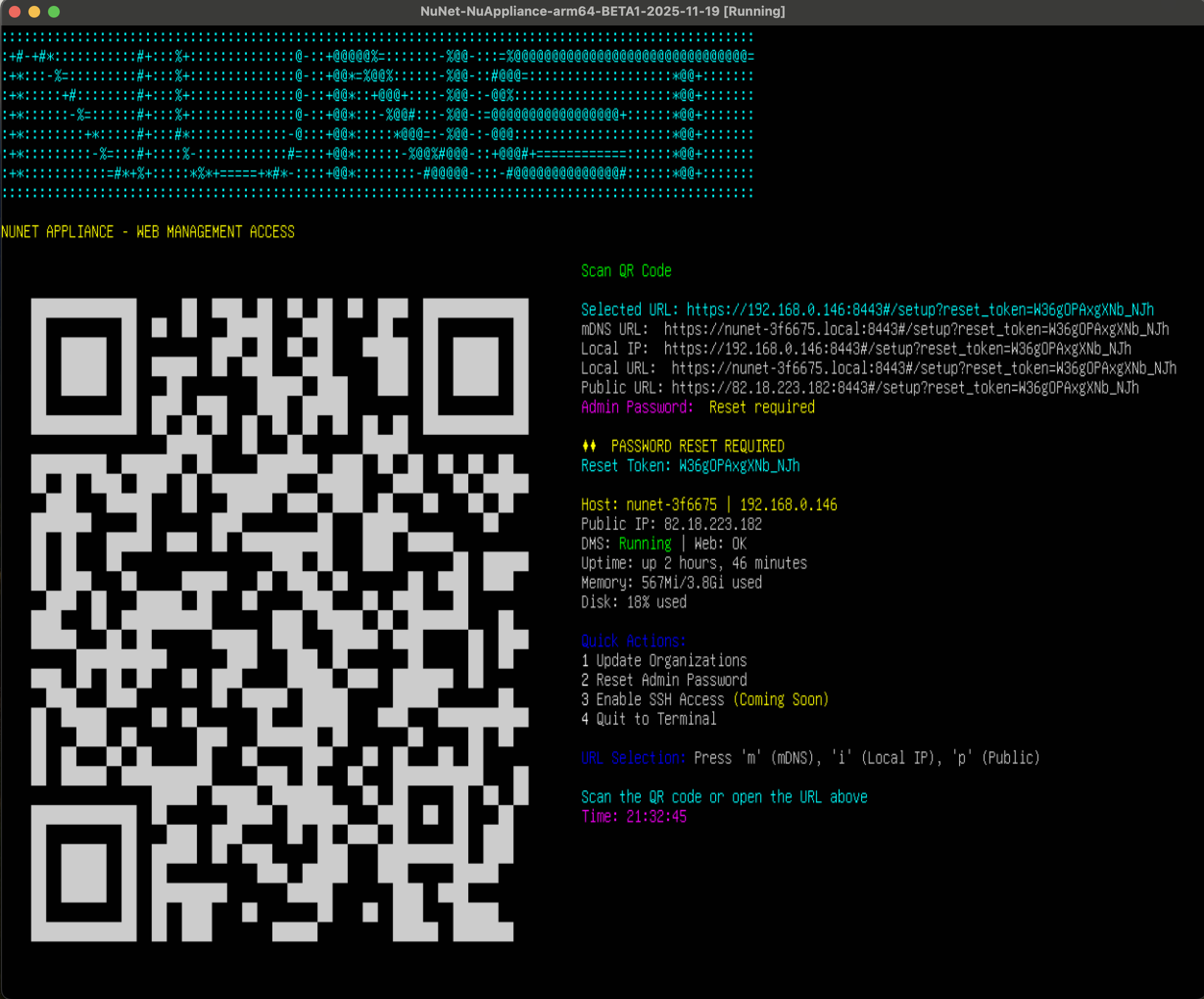
- You should see the appliance terminal interface displayed in the console
- The interface shows various options including menu items
Step 2: Reset the Password
-
Select Reset Option
- From the terminal menu, select option
2(the password reset option) - Press the Enter button to confirm
- From the terminal menu, select option
-
Password Reset Process
- The appliance will process the password reset
- The QR code and web URL will be refreshed
- A new setup token will be generated for accessing the appliance
Step 3: Log In with New Password
-
Access the Dashboard
- Scan the new QR code or use the refreshed URL displayed on the terminal
- You'll be taken to the master password setup page
-
Create New Password
- Enter a new master password
- Confirm the password
- Store this password securely for future logins
-
Complete Login
- After setting your new password, you'll be automatically logged in
- You can now access the appliance dashboard normally
Important Notes
- Password Reset is Immediate: The reset happens immediately when you select option 2
- Old Password Invalid: Once reset, your old password will no longer work
- No Data Loss: Resetting your password does not affect your deployments, organizations, or other appliance settings
- Secure Storage: Make sure to store your new password securely to avoid needing to reset it again
Troubleshooting Password Reset Issues
If you encounter issues resetting your password:
-
Terminal Not Visible
- Ensure the VirtualBox console window is maximized or visible
- Check that the appliance is running and not suspended
-
Option 2 Not Working
- Make sure you're selecting option 2 from the terminal menu
- Verify the appliance has fully booted before attempting reset
-
Still Can't Access Dashboard
- Verify you're using the new QR code or URL after reset
- Check that you're entering the new password correctly (case-sensitive)
- Ensure your browser hasn't cached the old login page
Related Topics
- Launching the Appliance - Initial setup and password creation
- Dashboard Walkthrough - Using the appliance dashboard
- Support Process - Getting additional help