Leaving an Organization
If you need to leave an organization in the NuNet network, this guide explains how to do so and what to expect.
How to Leave an Organization
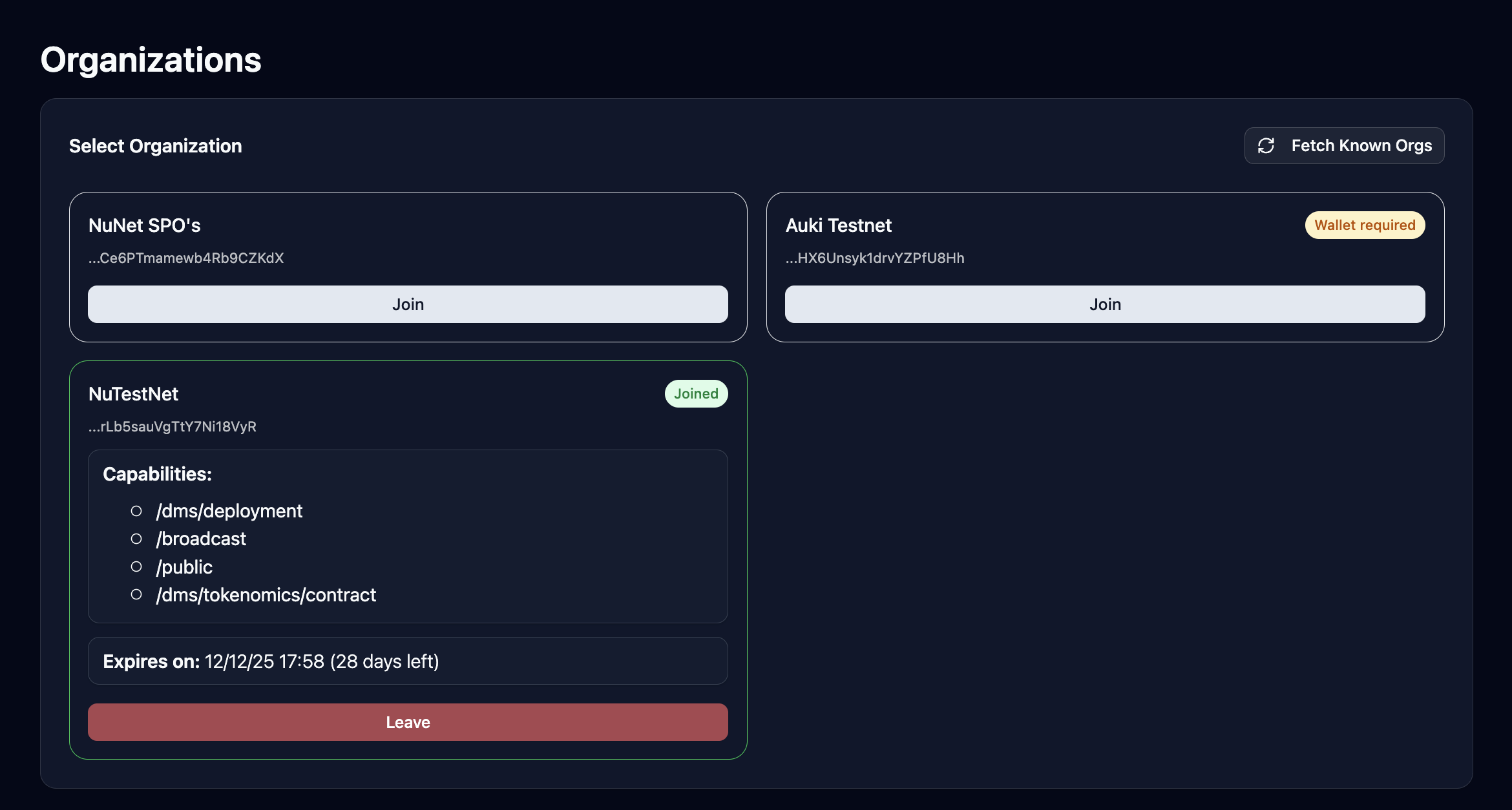
To leave an organization:
-
Navigate to Organizations
- In the NuNet Appliance dashboard, select organisations from the navigation menu
-
Select the Organization
- Find and select the organization you would like to leave from the list
-
Leave the Organization
- Click the Leave button to leave the organization
What Happens When You Leave
When you leave an organization:
- Roles and Capabilities Revoked: All roles and capabilities granted by that organization will be revoked
- Access Removed: You will lose access to:
- Organization-specific ensembles and datasets
- Organization-specific collaboration options
- Any capabilities or permissions granted by the organization
- Deployments Affected: Any deployments that relied on organization-granted capabilities may be affected
- No Data Loss: Your appliance configuration and other settings remain intact
Important Considerations
Before leaving an organization, consider:
- Active Deployments: Check if you have any active deployments that depend on organization capabilities
- Alternative Access: Ensure you have another way to access necessary resources if needed
- Re-joining: You may need to go through the onboarding process again if you want to rejoin later
- Data Backup: If the organization provided access to important data or resources, make sure you have backups
Rejoining an Organization
If you leave an organization and want to rejoin later:
- You'll need to go through the onboarding process again
- Complete the organization's requirements (email verification, approval, etc.)
- Wait for approval if the organization requires it
- Restart DMS when prompted after rejoining
Related Topics
- Joining an Organization - How to join an organization
- Understanding Capabilities and Roles - What roles and capabilities mean
- Support Process - Getting help if you encounter issues